About the EXEtender Player
Receiving Error Messages From
the Player
Understanding the Buffering Process
Understanding the
EXEtender Scheduling Process
Using the EXEtender General
Feedback System
Using the EXEtender Technical
Feedback System
Managing the Player's Features
Quick Guide to the Player's Features
Title Bar and Window Control Buttons
Accessing the Player's Settings
 About
the EXEtender Player
About
the EXEtender Player
Overview
The EXEtender Player is the software application that runs on
your desktop whenever you launch a title from the Service. Without the Player,
you cannot use any of the Service's titles. The EXEtender Player is optimized
to give you a great user-experience when you run a title from the Service. It
does so by continuously transferring the title's information to your PC before
you need it, in a process called buffering.
When you launch a title, the Player starts the initial buffering
process, preparing the title for you to use. You can start using the title as
soon as the initial buffering process is complete. The EXEtender Player contains
a
tool that enables you to perform various procedures on buffered titles, such as
removing and refreshing a title's buffered information. This tool also enables
you to control the amount of space the Player uses on your hard disk and to
personalize the Player configuration.
You can access the tool by clicking  at the bottom of the EXEtender Player, which
opens the
window.
at the bottom of the EXEtender Player, which
opens the
window.
Receiving Error Messages From the Player
The Player must buffer each title before you can use the title. The buffering process begins the moment you launch the title and continues in the background while you are using the title. If something causes the buffering process to stop, the Player sends you an error message in a small pop-up window.
The window contains:
|
|
A title name for the error message, which includes a number. You can use the title to verify that you are viewing the correct error message information when you click . |
|
A short description of the problem that was encountered. It may also provide you with limited information on how to solve the problem. |
|
|
A Tell Us button you can click to send us a feedback report regarding problems you ran into. |
|
|
A button you can click for further information. When clicked, this button takes you to the appropriate section in the Service's . |
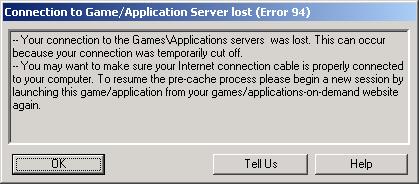
Following are some examples of cases that may cause the Player to
send you an error message:
l
The Player is not properly installed on your PC.
l
You do not have the appropriate software components for
the title you are trying to run.
l
There is not enough disk space available for the Player
to buffer the title you are trying to run.
Understanding the Buffering Process
In order to launch a title on the Service, certain information must first be loaded onto your PC. The EXEtender Player transfers the necessary information from the Server to your PC in a process called buffering.
During the initial buffering process, the Player only transfers the components the title needs to start running. This short delay is only experienced the first time you try to use a title. In the future when you launch this title there will be no delay before it starts.
There are five stages a title progresses through during the
initial buffering process:
|
Status Name |
The Player is... |
|
Connecting to the server |
Trying to connect to the application server in order to
activate the title. |
|
Initializing Player engine |
Initializing the engine components |
|
Verifying application data |
Checking the application data from being corrupted |
|
Loading application data |
Receiving information about any upgrades and software
components the title being buffered needs to create a 'virtual disk'
environment for the title to use. |
|
Buffering application data
to enhance performance |
Buffering the title's information and sending it to your
PC. |
Each stage is defined by a status and the title's current status displays in the .
2
The initial buffering time differs from title to title
and depends on your connection speed - the faster your connection; the faster
the Player can buffer the title. It usually takes longest to buffer a title
when you launch it for the first time.
Understanding the EXEtender Scheduling Process
The Scheduling process allows you to schedule the initial buffering process and to buffer the titles at a later time, by using a streaming process while you are not using the system.
You can schedule an application to be buffered at a later time,
by pressing the  button in the Player during the initial
buffering process of the application.
This will pop-up the following warning message:
button in the Player during the initial
buffering process of the application.
This will pop-up the following warning message:
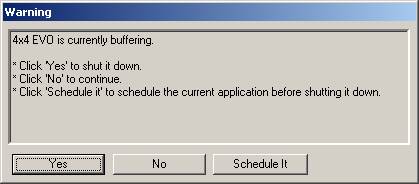
The are:
|
Button Name |
When Clicked, This Button... |
|
|
Stops the buffering process of the current application |
|
|
Continues the buffering process of the current application |
|
|
Schedules the buffering process of the current application to be executed at a later time |


Managing the scheduling applications can be doe in the “Installed application” folder in the EXEtender Setting tool. Click here for more information how to access the EXEtender settings tool.
2
The scheduled buffering time differs from title to
title and depends on your connection speed - the faster your connection; the
faster the Player can buffer the title.
Using the EXEtender General Feedback System
The EXEtender General Feedback system enables you to send valuable comments regarding the AoD service, technology or any other information the subscriber feels is important. Feedback forms help service providers improve service related issues and gain awareness regarding their users needs and wishes.
Using the EXEtender Technical Feedback System
The EXEtender Technical feedback system enables you to report valuable details when a problem occurs. The report is treated as confidential and anonymous, and includes information regarding the various components of the EXEtender system when the problem occurred, the operating system version and the computer hardware in use. There is no collection of files, or any other form of personal information.
The feedback system will be activated in one of the following situations:
1. By clicking the “Tell Us” button in an error dialogue box which cause the following dialogue box to pop up:
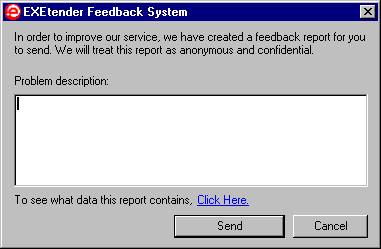
After filling out the description and clicking the send button, the information is sent to the service center, and the following dialogue box will appear, displaying the reporting procedure:
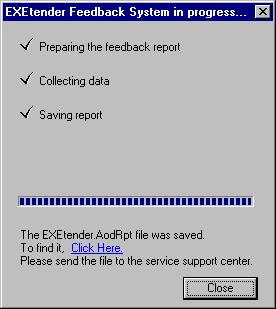
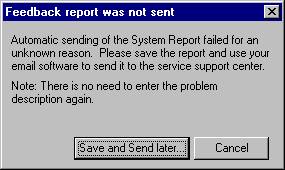
If the sending process did not complete, or encountered a problem, a different dialogue box will be displayed. The information will be saved on your hard drive and you will be asked to email it to the support service center.
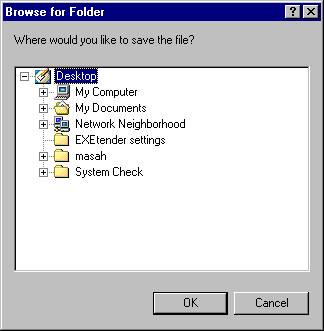
In the following window, the user will be able to determine where the file should be saved before it will be sent later by e-mail:
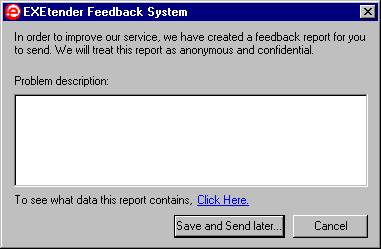
2. Another option of operating the EXEtender Feedback System when offline, is by clicking Start -- Programs -- EXEtender -- Technical Feedback.
The following dialogue box will pop up, enabling the user to complete a report and save it locally, as described previously, to be sent later when online:
2
Please note: the first time you use the EXEtender
Feedback System, your screen may blink for a mere second.
Managing
the Player's Features
Quick Guide to the Player's Features
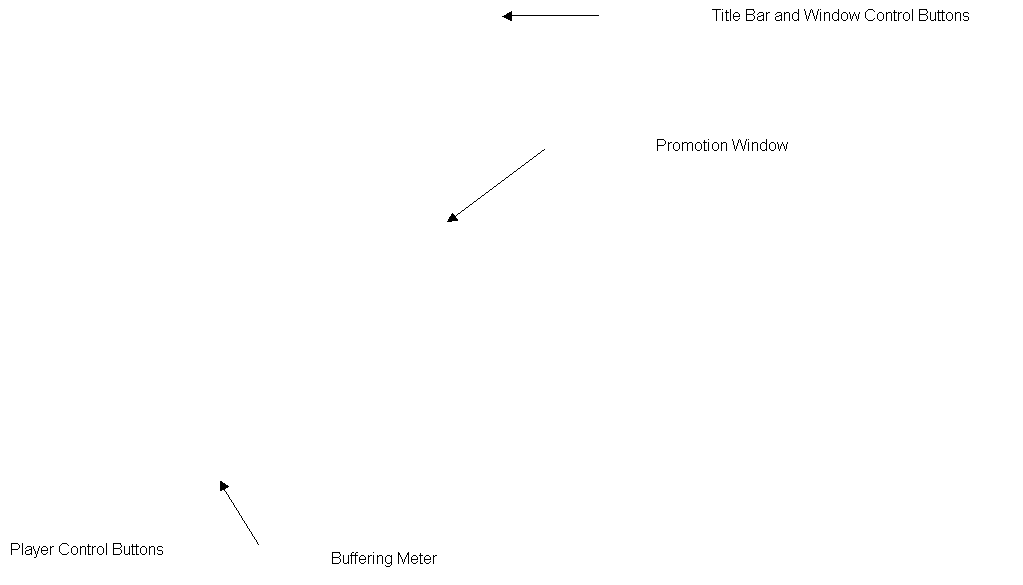
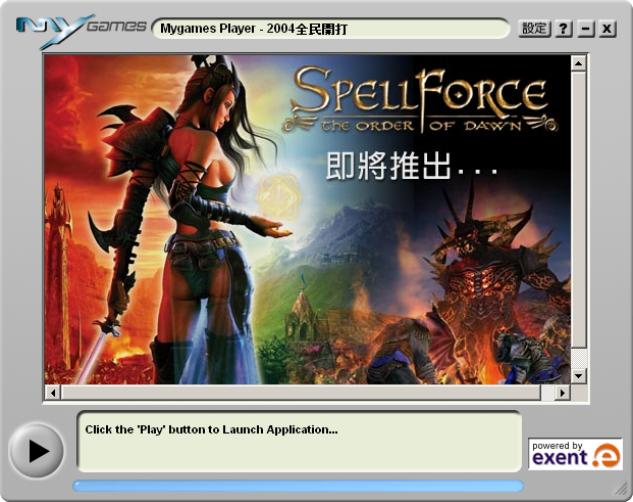
The Player can be broken down into four main sections:
l
The and
section displays the name of the title currently in use and contains three
standard Windows buttons (help, exit, and minimize).
l
The Promotion
Window displays information that may be relevant to the title that is
running or to the Service itself.
l
The Buffering
Meter shows you how much of the title's necessary components have
already been buffered and the approximate amount of time left before you can
start using the title. This information only displays when a title is in the
process of being buffered.
l
The allow you to manage the Player. For
example, you can manage the Player's settings and also stop the buffering
process at any time.
Title Bar and Window Control Buttons
The displays the name of the title currently in use,
and contains three standard Windows buttons that enable you to control the
Player window when it is open on your screen.
The are:
|
Button Name |
When Clicked, This Button... |
|
|
Opens the file you are currently viewing. |
|
|
Minimizes the Player and sends it to the task bar. You can
access the Player from the task bar at any time by double-clicking the Player
icon. |
|
|
Closes the title you are currently using and exits the
Player. When you exit the Player by clicking this button, you lose any
unsaved information. |


Promotion Window
The displays information that is specific to
the title you are currently streaming. While you are using a title, the Player
remains open and you can explore the information offered in the , which remains available in the
background.
Clicking items within the does not affect the buffering process in any way, which continues in the background.
Buffering Meter
The illustrates how much of the title's
information has already been buffered and gives you the approximate amount of
time left before you can start using the title.
The consists of two main parts:
l
The keeps track of the buffering process and
indicates its progression. As buffering progresses, the little boxes on the bar
fill with color. The more color, the more progress.
l
The indicates the current stage of the
buffering process and lets you know approximately how much time you must still
wait for the Player to complete the initial buffering process.
You can view the size of the information that is already buffered in relation to the total size of the file that must be buffered.
Click here for more information on
the buffering process.
Player Control Buttons
The enable you to control the Player
and its behavior in the following ways:
|
Button Name |
When Clicked, This Button... |
|
|
Opens the window, where you can access the Player Setting
tool, which allows you to designate file locations, allocate disk space to
the Player and personalize the Player configuration. This option is
recommended for advanced users only. |
|
|
Pressing the Play button will launch the application as
soon as the Buffering process is complete (as indicated by the buffering
meter and a flashing button). |

Accessing the Player's Settings
The Player has a built-in tool that enables
you to manage all the Player's settings. With this tool, you can perform
procedures on buffered titles and control the way in which the Player occupies
disk space on your hard-drive.
You can access this tool from one of the Player Control Buttons. For detailed information and instructions on how to use the tool, click the button from within the Player's window.
To access the Player's Settings window:
1. From the Start menu, select .
-Or-
2.
From the EXEtender Player, click ,
the EXEtender
window will be opened.